
Upgrade input devices by solving a specific comfort or speed problem, then tune settings before judging the result. The best keyboard or mouse is the one that fits your posture, tasks, and device rules.
Quick take for How to upgrade input devices for comfort and speed
- Upgrade input devices by matching the keyboard, mouse, trackpad, or pen to your posture, daily tasks, operating system, and available desk space.
- Comfort comes before extra features. A device that reduces reach, wrist strain, and repeated awkward movement is usually a better upgrade than one with more buttons.
- After buying, tune pointer speed, keyboard shortcuts, palm support, and placement before judging whether the upgrade worked.
Start with the problem your hands actually have
A keyboard and mouse upgrade should solve a specific problem: wrist discomfort, slow editing, missed clicks, cramped laptop posture, or too much switching between apps. Buying a premium device without naming the problem often creates a new adjustment burden instead of comfort or speed.
Watch your hands for one normal work session. Note when your wrists bend outward, when your shoulder reaches too far, when your mouse grip tightens, and when shortcuts slow you down. This simple observation tells you what kind of input device matters most: compact keyboard, full-size keyboard, vertical mouse, trackball, larger trackpad, drawing tablet, or programmable keypad.
The best setup also depends on the tasks you repeat. Heavy spreadsheet users may need a number pad. Writers may care about key feel and layout. Designers may need a pen or high-resolution pointing device. If your main frustration is account or attachment handling rather than typing comfort, start with email essentials before buying hardware.
Fit the device to posture, not the other way around
Ergonomic advice from workplace safety organizations is useful because it focuses on posture rather than gadget trends. OSHA's computer workstation eTool and the CDC NIOSH computer workstation checklist both emphasize evaluating the full workstation, including posture, reach, and placement.
For keyboards, the goal is a neutral wrist position and relaxed shoulders. A compact keyboard can reduce mouse reach because the mouse sits closer to your body. A split keyboard may help some users keep wrists straighter, but it takes practice. A laptop stand often requires an external keyboard and mouse so the screen can be raised without forcing your hands upward.
For pointing devices, choose based on movement pattern. A vertical mouse changes forearm rotation. A trackball reduces arm travel. A large trackpad supports gestures and may suit users who switch between documents. A pen tablet can help visual work but may not replace a mouse for every task.
Check compatibility before you buy
Compatibility is more than Bluetooth. Confirm operating system support, charging port, dongle requirements, available USB ports, keyboard layout, accessibility features, and whether work policies allow device drivers. Some advanced buttons need vendor software, and some locked-down work computers block those utilities.
If you switch between a laptop and desktop, look for multi-device pairing or a reliable wired option. Wired devices are simple, predictable, and usually fine for fixed desks. Wireless devices reduce clutter, but they add battery management and possible pairing issues.
Also consider noise. Mechanical keyboards can feel excellent but may disturb shared offices. Low-profile keyboards can be quieter but may feel less precise. The right choice is the one you can use all day without creating problems for other people.
Tune settings before deciding the upgrade failed
New input devices often feel strange for the first week. Before returning one, adjust pointer speed, scroll direction, double-click speed, key repeat rate, and shortcut mapping. Microsoft's mouse settings guide shows how Windows users can change button, wheel, and pointer behavior, and similar controls exist in macOS and many Linux desktop environments.
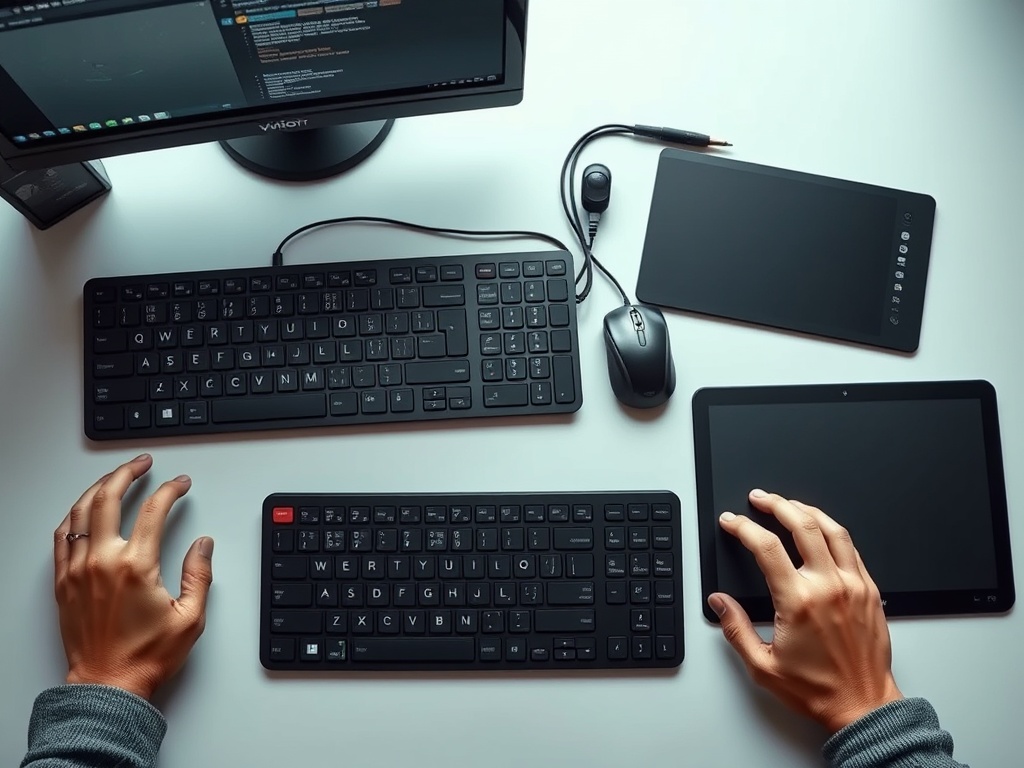
Set pointer speed so you can move across the screen without lifting your hand repeatedly, but not so fast that small targets become frustrating. For keyboards, test key repeat speed and shortcuts in the apps you use most. Do not judge comfort by a five-minute typing test alone.
If your new device requires a companion app, decide whether that app should run at startup. Too many device utilities can slow sign-in or clutter background processes, so compare the need with the advice in startup apps best practices.
A quick success checklist after setup
A good upgrade should meet five checks: your shoulders stay relaxed, your wrist position is neutral most of the time, your mouse or trackpad is close enough to reach without leaning, your most common shortcuts are easier, and you do not need to fight pairing or battery issues during work.
Use the device for real tasks before making a final decision. Write a long email, edit a document, move files, join a video call, and browse common websites. If one task still feels bad, the fix may be a setting, desk height, chair position, or app shortcut rather than a different device.
If discomfort continues, do not treat hardware advice as medical guidance. Stop the repeated motion, adjust the workstation, and seek professional ergonomic or healthcare support if pain persists. Technology can reduce friction, but it cannot diagnose injury.
Choose upgrades that grow with your workflow
Beginners should start with a reliable external keyboard and mouse or trackpad. Intermediate users can add shortcut layers, a programmable keypad, or a device tuned to creative or analytical work. Advanced users should document their custom mappings so a computer reset does not erase their workflow.
The next practical step is to list your three most repeated actions and choose a device that makes those actions easier. For privacy-sensitive remote work, pair hardware improvements with VPN and proxy decision basics so comfort and safer connectivity improve together.
Buying without creating more clutter
Before ordering, measure your desk and list the ports you actually have. A great keyboard can become frustrating if it needs a dongle you keep losing or if it pushes the mouse too far away. Also check return windows, because comfort is difficult to judge from specifications alone.
Keep the old device for a short transition period, but do not let a drawer become a hardware archive. Once the new setup is proven, recycle or donate usable gear according to local rules, remove batteries where required, and label any spare cables you keep.
Accessibility and left-handed use
Input upgrades should also respect accessibility and handedness. Left-handed users may need button swaps, different desk placement, or ambidextrous shapes. Users with limited mobility may benefit from sticky keys, voice input, on-screen keyboards, or a trackball. The best setup is the one the actual person can use consistently.
Input upgrade decision guide
| Problem | Device to consider | Setting to test |
|---|---|---|
| Mouse arm reaches too far | Compact keyboard or trackball | Pointer speed and desk placement |
| Wrist twists during pointing | Vertical mouse | Button mapping and grip pressure |
| Laptop posture feels cramped | External keyboard and stand | Screen height and key repeat |
| Creative edits feel slow | Pen tablet or programmable keypad | App shortcuts and pressure settings |
———————————————————————————————————————-